
Paper instruction booklets do not lead easy lives. They get torn, coffee-stained, chewed by a toddler, or lost entirely in a move. And even the ones that survive have a way of never being in the room when you actually want them.
There's also the other problem: you've got a set so obscure — old, imported, or off-brand — that no website lists it at all. The instructions exist only as the physical booklet in your hands, and if that goes, they're gone.
The fix for both is the same: put your instructions somewhere safe, private, and with you on every device. Here's how to upload your own, step by step.
First: your manual needs to be a PDF
If your instructions are already a digital PDF, you're ready — skip to the next section.
If they're on paper, you'll want to scan them first. Your phone can do this for free in a couple of minutes — we walk through the best apps and the tricks for a clean scan in How to Scan Instructions to PDF. Come back here once you've got the file.
A quick note on privacy
Before we start, the important part: anything you upload is private to you. Only you can see it. It's saved to your own library as your personal copy — it doesn't get published, shared, or added to any public listing. Think of it as a safe-deposit box for your manuals, not a bulletin board.
Step 1: Open the upload page
Head to Upload (you'll need a free account — it's how we keep your files private to you). This is where every manual you add lives.
Step 2: Find your set
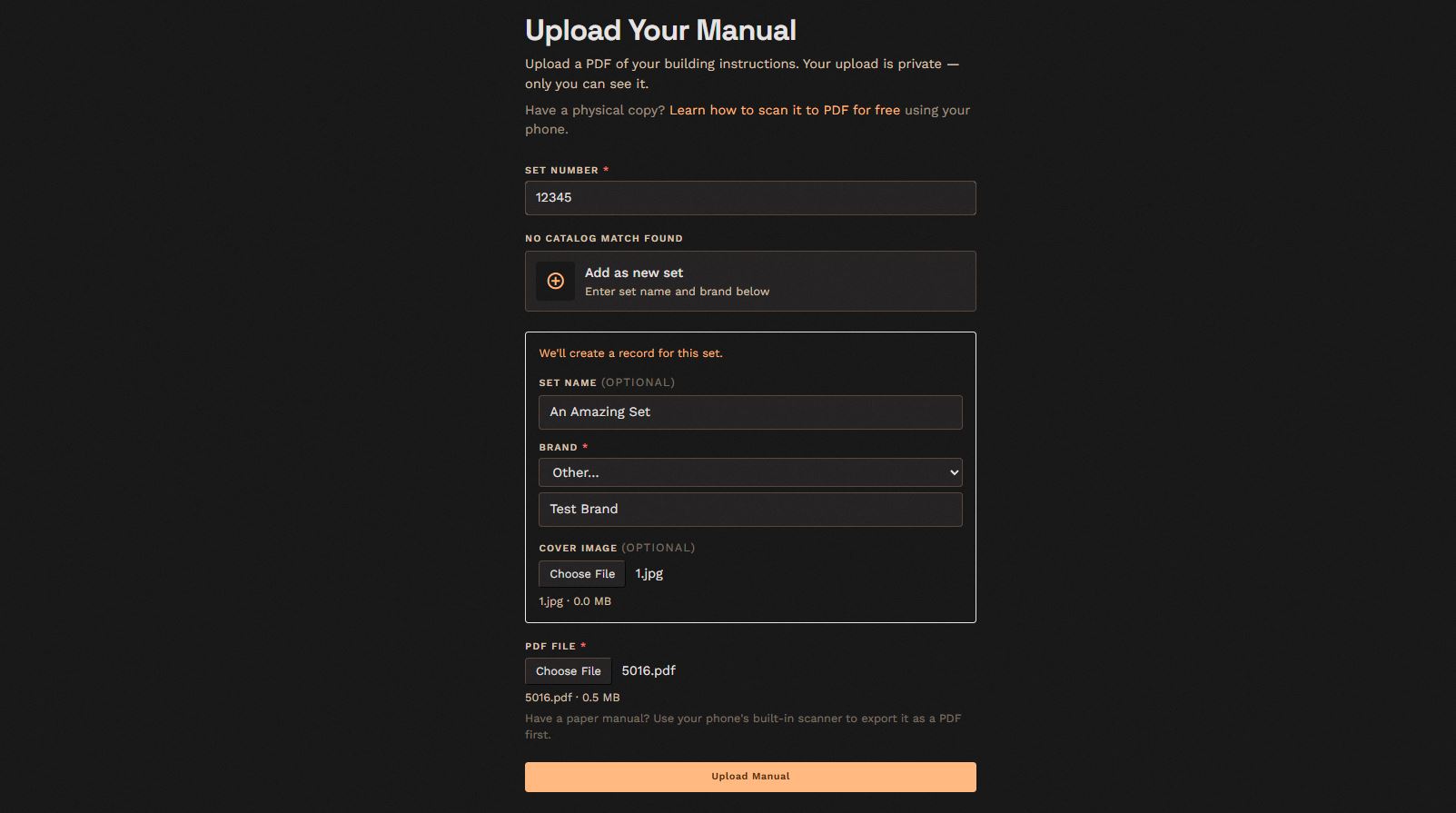
Type in the set number and BrikSnap searches the catalog — every brand, not just one. A couple of things can happen:
- Your set is already in the catalog. Pick the matching set from the list, and jump to Step 4.
- It's not in our system. No problem, and this is the part that matters for those obscure sets: choose Add as new set, and you can create it yourself.
Wait — if it's already in the catalog, why upload at all? Two reasons. Some catalog sets don't have any instructions yet, so your upload gives you a copy where there was none. Others already have official instructions attached — in that case you don't need to add your own, but you still can. Either way, your upload is always private to you; it never changes what anyone else sees.
Step 3: If it's a new set, add its details
For a set we don't have yet, you'll fill in a few quick things:
- The set name — whatever it's called.
- The brand — pick it from the list, or choose Other… and type it in if it's a brand we don't cover yet. That's how discontinued and off-brand sets nothing else has finally get a home.
- A cover image — optional, but strongly recommended. A clear photo of the box or the finished build makes the set instantly recognizable in your library later, instead of a blank placeholder.
This is the whole point of an open archive: if it's not here, you can put it here — for yourself.
Step 4: Attach your PDF and upload
Select your PDF file, then hit Upload Manual.
That's it. Your instructions are saved to your library, tied to the set, and the set page opens so you can check it right away.
Where it lives now
Your uploaded manual sits in your Library from now on — private to you, and reachable from any device you sign in on. The paper copy can go get lost or coffee-stained; your digital one is safe. And because it's attached to the set, it's a single tap away the next time you sit down to build.
If you're storing more than a few, it's worth organizing them into collections too — by theme, shelf, or whatever makes sense to you.
The short version
Scan it (if it's paper), open Upload, find your set or add it as new, attach the PDF, done. Every brand's welcome, your file stays private, and that fragile little booklet never has the power to ruin your afternoon again.
Upload your first manual — and stop worrying about the paper one.